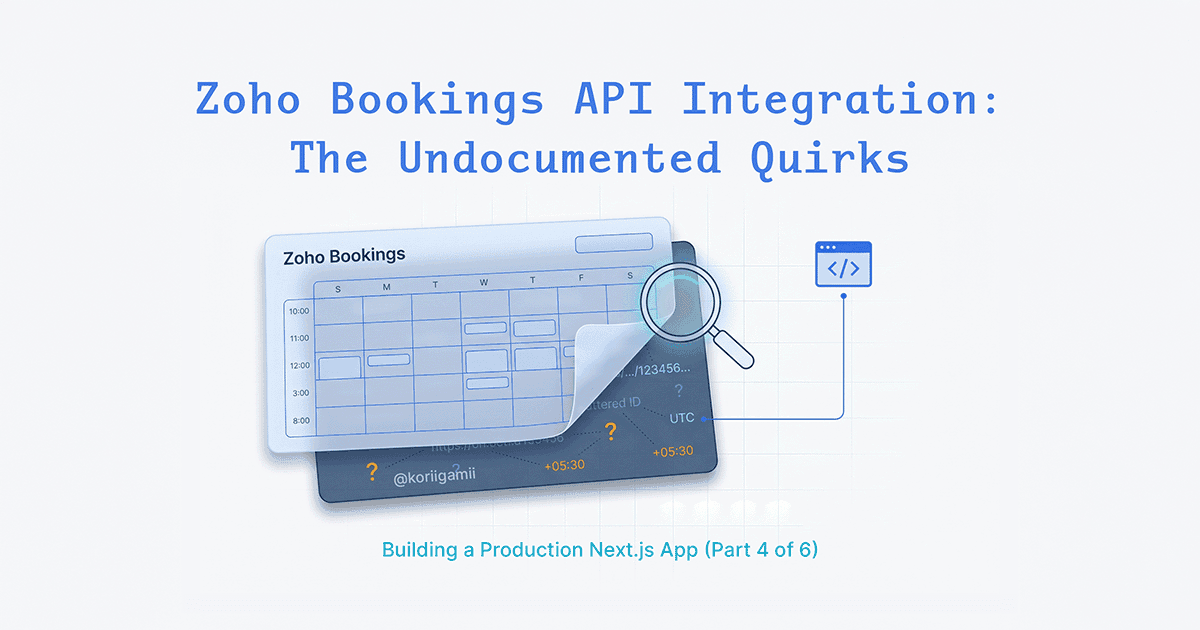
Zoho Bookings has an API. The documentation exists. The documentation is... incomplete. This article covers what the docs don't tell you: finding the IDs you need, handling response structure variations, time format inconsistencies, and timezone pitfalls that will cost you hours if you're not prepared.
The undocumented ID problem
Before writing any code, you need several IDs from Zoho: portal name, workspace ID, staff ID, and service IDs. The documentation assumes you have these. It doesn't tell you where to find them.
The secret: they're in the URLs.
Finding your IDs
Log into your Zoho Bookings dashboard and navigate to the relevant pages. The IDs are embedded in the URLs.
Portal Name (NEXT_PUBLIC_ZOHO_PORTAL_NAME):
https://bookings.zoho.com/portal/yourportalname/...
                          ^^^^^^^^^^^^^^^^
Workspace ID (ZOHO_WORKSPACE_ID):
https://bookings.zoho.com/portal/yourportal/admin#/workspaces/123456789012345678
                                                              ^^^^^^^^^^^^^^^^^^
Staff ID (ZOHO_STAFF_ID):
Navigate to Settings > Staffs, click on a staff member:
https://bookings.zoho.com/.../staffs/123456789012345678/edit
                                     ^^^^^^^^^^^^^^^^^^
Service ID (ZOHO_SERVICE_*):
Navigate to Services, click on a service:
https://bookings.zoho.com/.../services/123456789012345678/edit
                                       ^^^^^^^^^^^^^^^^^^
None of this is in the official documentation. I spent an afternoon clicking through the dashboard before realizing the IDs were in the URLs the whole time.
Environment variables
Here's what you need:
# OAuth credentials (from Zoho API Console)
ZOHO_CLIENT_ID=1000.XXXXXXXXXXXXXXXXXXXX
ZOHO_CLIENT_SECRET=XXXXXXXXXXXXXXXXXXXXXXXX
ZOHO_REFRESH_TOKEN=1000.XXXXXXXXXXXXXXXXXXXX.XXXXXXXXXXXXXXXXXXXX

# Region (US, EU, IN, AU, CN, JP, SA, CA)
ZOHO_REGION=EU

# IDs from dashboard URLs
ZOHO_WORKSPACE_ID=123456789012345678
ZOHO_STAFF_ID=123456789012345678

# Service IDs (one per service you offer)
ZOHO_SERVICE_CONSULTATION=123456789012345678
ZOHO_SERVICE_STANDARD=123456789012345679
ZOHO_SERVICE_PREMIUM=123456789012345680
# ... one for each service

# Public portal name (for booking links)
NEXT_PUBLIC_ZOHO_PORTAL_NAME=yourportalname
The region matters. Zoho has different API endpoints for different regions, and using the wrong one gives cryptic authentication errors.
OAuth and token management
Zoho uses OAuth 2.0 with refresh tokens. Access tokens expire after an hour. You need to handle automatic refresh.
// lib/zoho-bookings/auth.ts
import { ZohoConfig, ZohoTokenResponse } from './types';

const TOKEN_ENDPOINT = '/oauth/v2/token';

export class ZohoAuth {
  private accessToken: string;
  private refreshToken?: string;
  private clientId?: string;
  private clientSecret?: string;
  private tokenExpiry?: number;
  private region: string;
  private refreshPromise?: Promise<void>;

  constructor(config: ZohoConfig) {
    this.accessToken = config.accessToken;
    this.refreshToken = config.refreshToken;
    this.clientId = config.clientId;
    this.clientSecret = config.clientSecret;
    this.region = config.region || 'US';
    // Assume token is expired to force initial refresh
    this.tokenExpiry = Date.now() - 1000;
  }

  async getAccessToken(): Promise<string> {
    // Refresh 5 minutes before expiry
    const shouldRefresh = this.tokenExpiry && Date.now() >= this.tokenExpiry - 5 * 60 * 1000;

    if (shouldRefresh && this.refreshToken && this.clientId && this.clientSecret) {
      // Prevent concurrent refresh requests
      if (this.refreshPromise) {
        await this.refreshPromise;
      } else {
        this.refreshPromise = this.refreshAccessToken();
        await this.refreshPromise;
        this.refreshPromise = undefined;
      }
    }

    return this.accessToken;
  }

  private async refreshAccessToken(): Promise<void> {
    const params = new URLSearchParams({
      grant_type: 'refresh_token',
      client_id: this.clientId!,
      client_secret: this.clientSecret!,
      refresh_token: this.refreshToken!,
    });

    const accountsUrl = this.getAccountsUrl();
    const response = await fetch(`${accountsUrl}${TOKEN_ENDPOINT}`, {
      method: 'POST',
      headers: { 'Content-Type': 'application/x-www-form-urlencoded' },
      body: params.toString(),
    });

    if (!response.ok) {
      const error = await response.text();
      throw new Error(`Failed to refresh Zoho token: ${error}`);
    }

    const data: ZohoTokenResponse = await response.json();
    this.accessToken = data.access_token;
    this.tokenExpiry = Date.now() + data.expires_in * 1000;
  }

  private getAccountsUrl(): string {
    const regionUrls: Record<string, string> = {
      US: 'https://accounts.zoho.com',
      EU: 'https://accounts.zoho.eu',
      IN: 'https://accounts.zoho.in',
      AU: 'https://accounts.zoho.com.au',
      CN: 'https://accounts.zoho.com.cn',
      JP: 'https://accounts.zoho.jp',
      SA: 'https://accounts.zoho.sa',
      CA: 'https://accounts.zoho.ca',
    };
    return regionUrls[this.region] || regionUrls['US'];
  }

  getApiBaseUrl(): string {
    const regionUrls: Record<string, string> = {
      US: 'https://www.zohoapis.com',
      EU: 'https://www.zohoapis.eu',
      IN: 'https://www.zohoapis.in',
      AU: 'https://www.zohoapis.com.au',
      // ... other regions
    };
    return regionUrls[this.region] || regionUrls.US;
  }

  getAuthHeader(): string {
    return `Zoho-oauthtoken ${this.accessToken}`;
  }
}
The
refreshPromisepattern prevents multiple concurrent refresh requests - if two API calls happen simultaneously and both detect an expired token, you don't want both trying to refresh.
The response structure problem
Zoho's API responses are inconsistent. Sometimes data is in response.returnvalue.data, sometimes directly in response.returnvalue. The documentation shows one structure, the actual API returns another.
Here's what I learned from debugging:
async bookAppointment(request: BookAppointmentRequest): Promise<ZohoAppointment> {
  const response = await this.post<ZohoAppointmentResponse>(
    '/appointment',
    request as Record<string, any>
  );

  const returnvalue = response.response.returnvalue;

  // Check for failure (status can be 'failure' at API level)
  if ((returnvalue as any).status === 'failure') {
    throw new Error(`Zoho booking failed: ${returnvalue.message || 'Unknown error'}`);
  }

  // Try direct booking_id first (this is what Zoho actually returns)
  if (returnvalue.booking_id) {
    return returnvalue as ZohoAppointment;
  }

  // Fallback: check nested data field (for API version compatibility)
  if (returnvalue.data) {
    return returnvalue.data;
  }

  throw new Error('Zoho API did not return booking ID');
}
The error messages from Zoho were misleading. Bookings were actually succeeding - they showed up in the Zoho dashboard - but my code threw errors because it looked for data in the wrong place.
Log the full response during development. Don't trust the documentation's response examples.
console.log('[ZOHO DEBUG] Full response:', JSON.stringify(response, null, 2));Time format inconsistency
This one cost me a full day. The Zoho API returns time slots in different formats depending on... something. Sometimes "09:00 AM" (12-hour), sometimes "09:00" (24-hour).
The fix: parse both formats.
function parseTimeSlot(selectedTime: string): { hours: number; minutes: number } | null {
  // Try 12-hour format first (with AM/PM)
  const time12Match = selectedTime.match(/(\d+):(\d+)\s*(AM|PM)/i);
  if (time12Match) {
    let hours = parseInt(time12Match[1]!, 10);
    const minutes = parseInt(time12Match[2]!, 10);
    const period = time12Match[3]!.toUpperCase();

    if (period === 'PM' && hours !== 12) {
      hours += 12;
    } else if (period === 'AM' && hours === 12) {
      hours = 0;
    }

    return { hours, minutes };
  }

  // Try 24-hour format (HH:MM)
  const time24Match = selectedTime.match(/(\d+):(\d+)/);
  if (time24Match) {
    const hours = parseInt(time24Match[1]!, 10);
    const minutes = parseInt(time24Match[2]!, 10);

    if (hours < 0 || hours > 23 || minutes < 0 || minutes > 59) {
      return null;
    }

    return { hours, minutes };
  }

  return null;
}
When users selected a slot and clicked "Book", the app showed "Invalid time format". The slots came from Zoho in 24-hour format, but my booking code expected 12-hour format with AM/PM. Handle both.
The timezone trap
This is the most insidious bug. It manifests as "slot not available" errors even when the slot clearly shows as available in the calendar.
The problem: JavaScript Date objects convert to UTC on the server. A user selects 11:00 AM, your server is in UTC, and suddenly you're sending 11:00 UTC (which might be 4:00 PM or 6:00 AM in the staff member's timezone).
Pass dates as strings, not Date objects, to avoid timezone conversion.
// In your booking page client
const handleBooking = async () => {
  const timeResult = parseTimeSlot(selectedTime);
  if (!timeResult) {
    toast.error("Invalid time format");
    return;
  }

  const { hours, minutes } = timeResult;
  const year = selectedDate.getFullYear();
  const month = String(selectedDate.getMonth() + 1).padStart(2, '0');
  const day = String(selectedDate.getDate()).padStart(2, '0');
  const hoursStr = String(hours).padStart(2, '0');
  const minutesStr = String(minutes).padStart(2, '0');

  // Send as ISO-like string, NOT as Date object
  const appointmentDateString = `${year}-${month}-${day}T${hoursStr}:${minutesStr}:00`;

  await createAppointment(name, email, phone, appointmentDateString);
};
// In your server action
export async function createAppointment(
name: string,
email: string,
phone: string,
appointmentDateString: string // NOT Date
): Promise<{ success: boolean; message: string }> {
// Parse the string manually - don't let JS convert to UTC
const parts = appointmentDateString.match(/(\d{4})-(\d{2})-(\d{2})T(\d{2}):(\d{2}):(\d{2})/);
if (!parts) {
return { success: false, message: "Invalid date format" };
}
const [, year, month, day, hours, minutes, seconds] = parts;
// Format directly for Zoho (DD-Mon-YYYY HH:mm:ss)
const months = ['Jan', 'Feb', 'Mar', 'Apr', 'May', 'Jun', 'Jul', 'Aug', 'Sep', 'Oct', 'Nov', 'Dec'];
const monthName = months[parseInt(month!) - 1];
const zohoDateTime = `${day}-${monthName}-${year} ${hours}:${minutes}:${seconds}`;
// Now call Zoho with the correctly formatted time
const response = await zohoClient.bookAppointment({
service_id: serviceId,
staff_id: staffId,
from_time: zohoDateTime,
customer_details: { name, email, phone_number: phone }
});
// ...
}The staff member's availability is in their local timezone. When a user sees "11:00 AM", that's 11:00 AM in the staff member's timezone, not the user's. Preserve that exact time all the way to Zoho.
Service ID mapping
Each service in Zoho has a unique ID. You need to map your application's service names to Zoho service IDs.
// lib/zoho.ts
export function getZohoServiceId(serviceName: string): string | undefined {
  const serviceMapping: Record<string, string> = {
    'Free Consultation': process.env.ZOHO_SERVICE_CONSULTATION || '',
    'Standard Session': process.env.ZOHO_SERVICE_STANDARD || '',
    'Premium Session': process.env.ZOHO_SERVICE_PREMIUM || '',
    // Add each service you offer
  };

  const serviceId = serviceMapping[serviceName];
  if (!serviceId) {
    console.warn(`No Zoho service ID configured for: ${serviceName}`);
  }

  return serviceId;
}
This mapping needs to be case-sensitive and match exactly what your UI displays. One character off and the booking fails silently (or with an unhelpful error).
Date format for Zoho
Zoho expects dates in a specific format: DD-Mon-YYYY for dates, DD-Mon-YYYY HH:mm:ss for datetimes.
// Helper methods
static formatDate(date: Date): string {
  const months = ['Jan', 'Feb', 'Mar', 'Apr', 'May', 'Jun', 'Jul', 'Aug', 'Sep', 'Oct', 'Nov', 'Dec'];
  const day = String(date.getDate()).padStart(2, '0');
  const month = months[date.getMonth()];
  const year = date.getFullYear();
  return `${day}-${month}-${year}`;
}

static formatDateTime(date: Date): string {
  const dateStr = ZohoBookingsClient.formatDate(date);
  const hours = String(date.getHours()).padStart(2, '0');
  const minutes = String(date.getMinutes()).padStart(2, '0');
  const seconds = String(date.getSeconds()).padStart(2, '0');
  return `${dateStr} ${hours}:${minutes}:${seconds}`;
}
For availability queries, use DD-Mon-YYYY:
const zohoDateStr = `${day}-${monthName}-${year}`; // e.g., "15-Jan-2026"
const slots = await zohoClient.getAvailableSlots(serviceId, staffId, zohoDateStr, 'staff');
Debugging strategy
When things go wrong with Zoho (and they will), comprehensive logging is your only friend.
// In your server action
console.log('[ZOHO DEBUG] Input:', { name, email, phone, appointmentDateString });
console.log('[ZOHO DEBUG] Parsed:', { year, month, day, hours, minutes });
console.log('[ZOHO DEBUG] Formatted for Zoho:', zohoDateTime);
console.log('[ZOHO DEBUG] Service ID:', serviceId);
console.log('[ZOHO DEBUG] Staff ID:', staffId);

try {
  const response = await zohoClient.bookAppointment(request);
  console.log('[ZOHO DEBUG] Success:', response.booking_id);
} catch (error) {
  console.error('[ZOHO DEBUG] Error:', error);
  console.error('[ZOHO DEBUG] Full request was:', JSON.stringify(request, null, 2));
}
Log everything during development. The error messages from Zoho are often unhelpful ("slot not available" could mean wrong time format, wrong timezone, wrong service ID, or actually no availability).
Fetching available slots
// actions/availabilityActions.ts
"use server";

import { getZohoClient, getZohoStaffId, getZohoServiceId } from '@/lib/zoho';

export async function getAvailableTimeSlots(
  dateString: string,  // YYYY-MM-DD
  serviceName?: string
): Promise<string[]> {
  try {
    const zohoClient = getZohoClient();
    const staffId = getZohoStaffId();

    // Parse date string
    const [year, month, day] = dateString.split('-');
    const months = ['Jan', 'Feb', 'Mar', 'Apr', 'May', 'Jun', 'Jul', 'Aug', 'Sep', 'Oct', 'Nov', 'Dec'];
    const monthName = months[parseInt(month!) - 1];
    const zohoDateStr = `${day}-${monthName}-${year}`;

    // Get service ID
    let serviceId: string | undefined;
    if (serviceName) {
      serviceId = getZohoServiceId(serviceName);
      if (!serviceId) {
        console.error(`Service ID not found for: ${serviceName}`);
        return [];
      }
    } else {
      serviceId = process.env.ZOHO_DEFAULT_SERVICE_ID;
    }

    const availableSlots = await zohoClient.getAvailableSlots(
      serviceId!,
      staffId,
      zohoDateStr,
      'staff'
    );

    return Array.isArray(availableSlots) ? availableSlots : [];
  } catch (error) {
    console.error("[Zoho] Error fetching availability:", error);
    return [];
  }
}
Always return an empty array on error, not undefined or null. Your calendar component will thank you.
Complete booking flow
Putting it together:
// 1. User selects date and time slot
// 2. Client sends string (not Date) to server
const appointmentDateString = `${year}-${month}-${day}T${hours}:${minutes}:00`;

// 3. Server parses string without UTC conversion
const parts = appointmentDateString.match(/(\d{4})-(\d{2})-(\d{2})T(\d{2}):(\d{2}):(\d{2})/);

// 4. Format directly for Zoho
const zohoDateTime = `${day}-${monthName}-${year} ${hours}:${minutes}:${seconds}`;

// 5. Make the booking
const response = await zohoClient.bookAppointment({
  service_id: serviceId,
  staff_id: staffId,
  from_time: zohoDateTime,
  customer_details: {
    name: customerName,
    email: customerEmail,
    phone_number: customerPhone,
  }
});

// 6. Handle the response (check both structures)
if (response.booking_id) {
  // Success
}
Common errors and fixes
"slot not available"
- Check timezone handling (are you converting to UTC?)
- Verify the time format matches what Zoho returned
- Confirm the service ID is correct for that slot
"Invalid service ID"
- Double-check the ID from the URL
- Verify your env var is loaded correctly
- Service IDs are workspace-specific
"Authentication failed"
- Check your region setting matches your Zoho account region
- Verify refresh token is valid (they can expire if unused for 3 months)
- Ensure client_id and client_secret are correct
Booking succeeds but code throws error
- Log the full response and check its structure
- Try both
returnvalue.booking_idandreturnvalue.data.booking_id - The booking probably worked - check your Zoho dashboard
Key takeaways
- Find IDs in Zoho dashboard URLs - they're not in the documentation
- Handle both 12-hour and 24-hour time formats from the API
- Pass dates as strings, not Date objects, to avoid timezone conversion
- Log the full API response during development - the structure varies
- Map service names to Zoho service IDs explicitly
- Use the correct region for your Zoho account
Zoho Bookings works well once you understand its quirks. The API is functional but underdocumented. Most of what I learned came from trial and error, logging everything, and checking the dashboard to see what actually happened versus what my code expected.
The good news: once the integration is working, it's stable. The bad news: getting there requires discovering all these quirks yourself. Hopefully this article saves you some of that time.