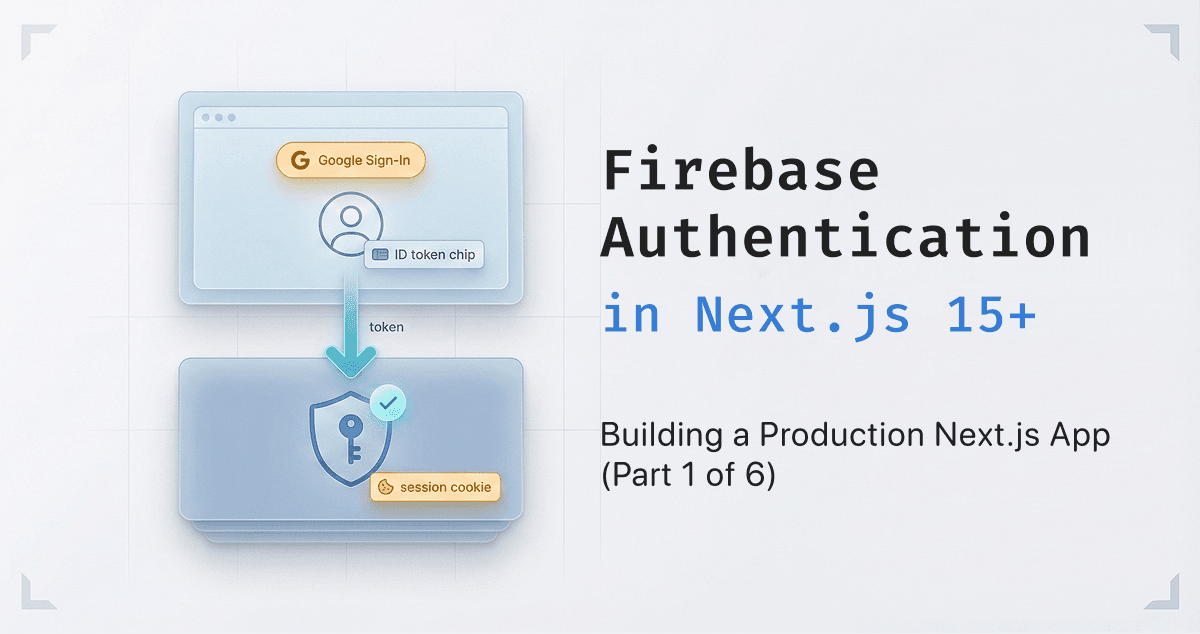
Firebase Authentication is a common choice for Next.js applications, but the setup has some non-obvious requirements - especially when you need both client-side authentication and server-side token verification. This guide covers the full implementation: client-side Google Sign-In, server-side Admin SDK initialization, and passing tokens between them.
What we're building
By the end of this guide, you'll have:
- A Firebase client setup that works with Next.js
- Google Sign-In functionality
- An AuthContext that manages user state
- Firebase Admin SDK properly initialized on the server
- API routes that verify user tokens
- Session cookie management for persistent auth
Prerequisites
You'll need a Firebase project. If you don't have one:
- Go to the Firebase Console (console.firebase.google.com)
- Create a new project
- Enable Authentication and add Google as a sign-in provider
- Get your web app credentials from Project Settings
Client-side setup
Environment variables
Create a .env.local file with your Firebase web credentials:
# Firebase Client (public - used in browser)
NEXT_PUBLIC_FIREBASE_API_KEY=your-api-key
NEXT_PUBLIC_FIREBASE_AUTH_DOMAIN=your-project.firebaseapp.com
NEXT_PUBLIC_FIREBASE_PROJECT_ID=your-project-id
NEXT_PUBLIC_FIREBASE_STORAGE_BUCKET=your-project.appspot.com
NEXT_PUBLIC_FIREBASE_MESSAGING_SENDER_ID=your-sender-id
NEXT_PUBLIC_FIREBASE_APP_ID=your-app-id
The NEXT_PUBLIC_ prefix is important - it tells Next.js to expose these variables to the browser. Since these are public Firebase credentials (they're already in your built JavaScript), this is fine.
Firebase client initialization
Create lib/firebase-client.ts:
import { initializeApp, getApps, getApp, FirebaseOptions } from "firebase/app";
import { getAuth } from "firebase/auth";

const firebaseConfig: FirebaseOptions = {
  apiKey: process.env.NEXT_PUBLIC_FIREBASE_API_KEY,
  authDomain: process.env.NEXT_PUBLIC_FIREBASE_AUTH_DOMAIN,
  projectId: process.env.NEXT_PUBLIC_FIREBASE_PROJECT_ID,
  storageBucket: process.env.NEXT_PUBLIC_FIREBASE_STORAGE_BUCKET,
  messagingSenderId: process.env.NEXT_PUBLIC_FIREBASE_MESSAGING_SENDER_ID,
  appId: process.env.NEXT_PUBLIC_FIREBASE_APP_ID,
};

const app = !getApps().length ? initializeApp(firebaseConfig) : getApp();
const auth = getAuth(app);

export { auth };
The !getApps().length check prevents re-initialization errors. In development, hot reloading can trigger this file multiple times, and Firebase throws if you try to initialize twice.
AuthContext for state management
Create context/AuthContext.tsx:
"use client";

import { createContext, useContext, useState, useEffect, ReactNode } from "react";
import { onAuthStateChanged, User } from "firebase/auth";
import { auth } from "@/lib/firebase-client";

interface AuthContextType {
  user: User | null;
  loading: boolean;
}

const AuthContext = createContext<AuthContextType>({
  user: null,
  loading: true,
});

export const AuthProvider = ({ children }: { children: ReactNode }) => {
  const [user, setUser] = useState<User | null>(null);
  const [loading, setLoading] = useState(true);

  useEffect(() => {
    const unsubscribe = onAuthStateChanged(auth, async (firebaseUser) => {
      if (firebaseUser) {
        setUser(firebaseUser);

        // Optional: sync user to your database
        await fetch('/api/user', {
          method: 'POST',
          headers: { 'Content-Type': 'application/json' },
          body: JSON.stringify({
            uid: firebaseUser.uid,
            email: firebaseUser.email,
            name: firebaseUser.displayName,
            image: firebaseUser.photoURL
          }),
        });
      } else {
        setUser(null);
      }
      setLoading(false);
    });

    return () => unsubscribe();
  }, []);

  return (
    <AuthContext.Provider value={{ user, loading }}>
      {children}
    </AuthContext.Provider>
  );
};

export const useAuth = () => useContext(AuthContext);
The onAuthStateChanged listener fires whenever the user's authentication state changes - on login, logout, or when the page loads and Firebase restores the session from local storage.
Google Sign-In component
Here's a login page with Google Sign-In:
"use client";

import { useRouter } from 'next/navigation';
import { signInWithPopup, GoogleAuthProvider } from "firebase/auth";
import { auth } from "@/lib/firebase-client";

const LoginPage = () => {
  const router = useRouter();

  const handleSignIn = async () => {
    const provider = new GoogleAuthProvider();
    try {
      const result = await signInWithPopup(auth, provider);
      const user = result.user;

      // Get the ID token for server-side verification
      const idToken = await user.getIdToken();

      // Send token to backend to create session
      const response = await fetch('/api/auth/session', {
        method: 'POST',
        headers: { 'Content-Type': 'application/json' },
        body: JSON.stringify({ idToken }),
      });

      if (response.ok) {
        // Full page reload ensures middleware sees the new session cookie
        window.location.href = '/dashboard';
      } else {
        const data = await response.json();
        alert(data.error || "Authentication failed.");
        await auth.signOut();
      }
    } catch (error) {
      console.error("Sign-in error:", error);
      alert("An error occurred. Please try again.");
    }
  };

  return (
    <div className="flex items-center justify-center min-h-screen">
      <button
        onClick={handleSignIn}
        className="bg-blue-600 text-white py-2 px-4 rounded-lg hover:bg-blue-700"
      >
        Sign In with Google
      </button>
    </div>
  );
};

export default LoginPage;
Use
window.location.hrefinstead ofrouter.push()after login. This forces a full page reload, which is necessary for Next.js middleware to see the newly created session cookie. With client-side navigation, the middleware doesn't re-run, and the user might get stuck on the login page even after successful authentication.
Server-side setup
Environment variables for Admin SDK
Add these to your .env.local:
# Firebase Admin (secret - never expose to browser)
FIREBASE_PROJECT_ID=your-project-id
FIREBASE_CLIENT_EMAIL=firebase-adminsdk-xxxxx@your-project.iam.gserviceaccount.com
FIREBASE_PRIVATE_KEY="-----BEGIN PRIVATE KEY-----\nYour-Private-Key-Here\n-----END PRIVATE KEY-----\n"
Get these from Firebase Console > Project Settings > Service Accounts > Generate new private key. The JSON file contains project_id, client_email, and private_key.
The FIREBASE_PRIVATE_KEY needs special handling - it contains newlines that get escaped differently across environments. More on this below.
Firebase Admin initialization
Create lib/firebase-admin.ts:
import admin from 'firebase-admin';

if (!admin.apps.length) {
  admin.initializeApp({
    credential: admin.credential.cert({
      projectId: process.env.FIREBASE_PROJECT_ID,
      clientEmail: process.env.FIREBASE_CLIENT_EMAIL,
      privateKey: process.env.FIREBASE_PRIVATE_KEY?.replace(/\\n/g, '\n'),
    }),
  });
}

export default admin;
Two things happening here:
-
The
!admin.apps.lengthcheck - Firebase Admin SDK also throws on double initialization. This check is important because Next.js API routes and Server Components can re-execute this module multiple times. -
The
replace(/\\n/g, '\n')call - Environment variable parsers often escape the literal newlines in your private key as\n(the characters backslash and n). This regex converts them back to actual newline characters. Without this, you'll get cryptic errors about invalid PEM format.
Token verification in API routes
Here's how to verify ID tokens in a Next.js API route:
// app/api/user/route.ts
import { NextRequest, NextResponse } from 'next/server';
import admin from '@/lib/firebase-admin';

export async function POST(request: NextRequest) {
  try {
    // Extract the Bearer token from Authorization header
    const authHeader = request.headers.get('Authorization');
    if (!authHeader?.startsWith('Bearer ')) {
      return NextResponse.json({ error: 'Missing token' }, { status: 401 });
    }

    const idToken = authHeader.split('Bearer ')[1];

    // Verify the token with Firebase Admin
    const decodedToken = await admin.auth().verifyIdToken(idToken);

    // Now you have the verified user info
    const { uid, email, name, picture } = decodedToken;

    // Do something with the verified user
    // e.g., create or update user in database

    return NextResponse.json({ success: true, uid });
  } catch (error) {
    console.error('Token verification failed:', error);
    return NextResponse.json({ error: 'Invalid token' }, { status: 401 });
  }
}
The verifyIdToken method does the heavy lifting - it validates the token's signature, checks expiration, and returns the decoded claims.
Passing tokens from client to server
This is where things often go wrong. The client has a Firebase User object, but API routes need the ID token to verify the request.
Getting the token on the client
// In any client component with useAuth()
const { user } = useAuth();

const fetchProtectedData = async () => {
  if (!user) return;

  // Get a fresh ID token
  const idToken = await user.getIdToken();

  const response = await fetch('/api/dashboard', {
    headers: {
      'Authorization': `Bearer ${idToken}`,
    },
  });

  const data = await response.json();
};
Call user.getIdToken() before each authenticated request. The Firebase SDK handles token refresh automatically - if the token is expired, it fetches a new one before returning.
A common pattern: authenticated fetch wrapper
You can create a utility to handle this automatically:
// lib/authenticated-fetch.ts
import { auth } from '@/lib/firebase-client';

export async function authenticatedFetch(
  url: string,
  options: RequestInit = {}
): Promise<Response> {
  const user = auth.currentUser;

  if (!user) {
    throw new Error('User not authenticated');
  }

  const idToken = await user.getIdToken();

  return fetch(url, {
    ...options,
    headers: {
      ...options.headers,
      'Authorization': `Bearer ${idToken}`,
    },
  });
}
Session cookies for persistent auth
For some use cases - especially admin panels or apps where you want server-side rendering with user data - session cookies work better than passing tokens on every request.
Creating the session cookie
// app/api/auth/session/route.ts
import { NextRequest, NextResponse } from 'next/server';
import admin from '@/lib/firebase-admin';

export async function POST(request: NextRequest) {
  try {
    const { idToken } = await request.json();

    if (!idToken) {
      return NextResponse.json({ error: 'Token required' }, { status: 400 });
    }

    // Verify the ID token first
    await admin.auth().verifyIdToken(idToken);

    // Create a session cookie (5 days expiry)
    const expiresIn = 60 * 60 * 24 * 5 * 1000;
    const sessionCookie = await admin.auth().createSessionCookie(idToken, { expiresIn });

    const response = NextResponse.json({ status: 'success' });
    response.cookies.set({
      name: 'session',
      value: sessionCookie,
      maxAge: expiresIn / 1000, // maxAge is in seconds
      httpOnly: true,
      secure: process.env.NODE_ENV === 'production',
      sameSite: 'lax',
    });

    return response;
  } catch (error) {
    console.error('Session creation failed:', error);
    return NextResponse.json({ error: 'Authentication failed' }, { status: 401 });
  }
}
Verifying session cookies in middleware
// middleware.ts
import { NextRequest, NextResponse } from 'next/server';

export async function middleware(request: NextRequest) {
  const session = request.cookies.get('session')?.value;

  // Paths that require authentication
  const protectedPaths = ['/dashboard', '/settings'];
  const isProtectedPath = protectedPaths.some(path =>
    request.nextUrl.pathname.startsWith(path)
  );

  if (isProtectedPath && !session) {
    return NextResponse.redirect(new URL('/login', request.url));
  }

  return NextResponse.next();
}

export const config = {
  matcher: ['/dashboard/:path*', '/settings/:path*'],
};
You can't verify the session cookie directly in Edge middleware because
firebase-adminuses Node.js-specific APIs. The middleware just checks if the cookie exists. For actual verification, call an API route or do it in a Server Component.
Common pitfalls and how to fix them
"The default Firebase app does not exist"
This error means you're calling Firebase Admin methods before initialization. The fix:
// Wrong - import might execute before initialization
import admin from 'firebase-admin';
admin.auth().verifyIdToken(token); // Error!

// Right - use the configured export
import admin from '@/lib/firebase-admin'; // This runs initializeApp
admin.auth().verifyIdToken(token); // Works
Always import from your initialization file, not directly from firebase-admin.
"Firebase Admin SDK has already been initialized"
The double-initialization error. Fix with the admin.apps.length check shown above. This commonly happens when:
- Hot reloading in development
- Multiple API routes importing the admin module
- Server Components re-rendering
Private key format errors
If you see errors about invalid PEM format or the private key:
- Check the
replace(/\\n/g, '\n')is applied - Ensure quotes around the key in
.env.local- use double quotes - In Vercel/other hosts, you might need to base64 encode the key:
# Encode
echo -n "$FIREBASE_PRIVATE_KEY" | base64

# Decode in code
privateKey: Buffer.from(process.env.FIREBASE_PRIVATE_KEY_BASE64!, 'base64').toString('utf-8')
User appears logged in but API calls fail with 401
This usually means the ID token isn't being passed or is expired. Check:
- You're calling
getIdToken()before the request - The Authorization header format is
Bearer <token>(with space) - The token hasn't expired (they last 1 hour; Firebase auto-refreshes)
Login redirect not working
If users stay on the login page after successful authentication:
// Wrong - client navigation doesn't trigger middleware
router.push('/dashboard');

// Right - full reload runs middleware
window.location.href = '/dashboard';
Complete file structure
app/
├── api/
│   ├── auth/
│   │   └── session/
│   │       └── route.ts       # Session cookie creation
│   └── user/
│       └── route.ts           # User management with token verification
├── login/
│   └── page.tsx               # Login page with Google Sign-In
└── dashboard/
    └── page.tsx               # Protected page
context/
└── AuthContext.tsx            # Client auth state
lib/
├── firebase-client.ts         # Client SDK initialization
└── firebase-admin.ts          # Admin SDK initialization
middleware.ts                  # Route protection
Key takeaways
- Client SDK uses public credentials with
NEXT_PUBLIC_prefix- Admin SDK uses private credentials, never exposed to browser
- Always check
!admin.apps.lengthbefore Admin initialization- Handle private key newlines with
.replace(/\\n/g, '\n')- Use
window.location.hreffor post-login redirects, notrouter.push()- Pass ID tokens in the Authorization header for API calls
- Session cookies work better for admin panels and SSR scenarios
Firebase Authentication in Next.js means coordinating two separate SDKs with different security models - the client SDK for browser-side auth, and the Admin SDK for server-side verification. Get the initialization patterns right, handle the private key formatting, and remember to use full page reloads after login. After that, everything else is just passing tokens around.