You ask Claude Code to write a feature, add tests, format the files, and commit when done.
It writes the feature. It adds most of the tests. It runs the formatter on two files and skips a third. Then it says "Done!" and waits.
No commit. The formatter missed a file. Claude considered these steps optional.
This isn't Claude being lazy. It's Claude being an LLM: it decides what to do based on the situation, and sometimes it judges that "good enough" is good enough. If you need something to always happen, you can't rely on Claude to remember.
That's what hooks are for.
What Hooks Actually Are
Claude Code hooks are shell commands that execute automatically at specific points in Claude's lifecycle. They're not suggestions. They run regardless of what Claude decides to do.
Claude might decide not to run your formatter. A hook on PostToolUse runs Prettier after every file edit whether Claude decided to or not.
Claude might forget to notify you. A hook on Notification fires every time Claude needs your attention, without Claude having to think about it.
Hooks move behavior from Claude's judgment into your project's rules. The things that matter most belong in hooks, not prompts. Code quality, notifications, safety.
As GitButler's guide puts it: "Start with auto-formatting on PostToolUse, dangerous command blocking on PreToolUse, and desktop notifications on Stop. Those three cover the most ground for the least effort."
18 Events, 4 Hook Types — Here's What to Care About First
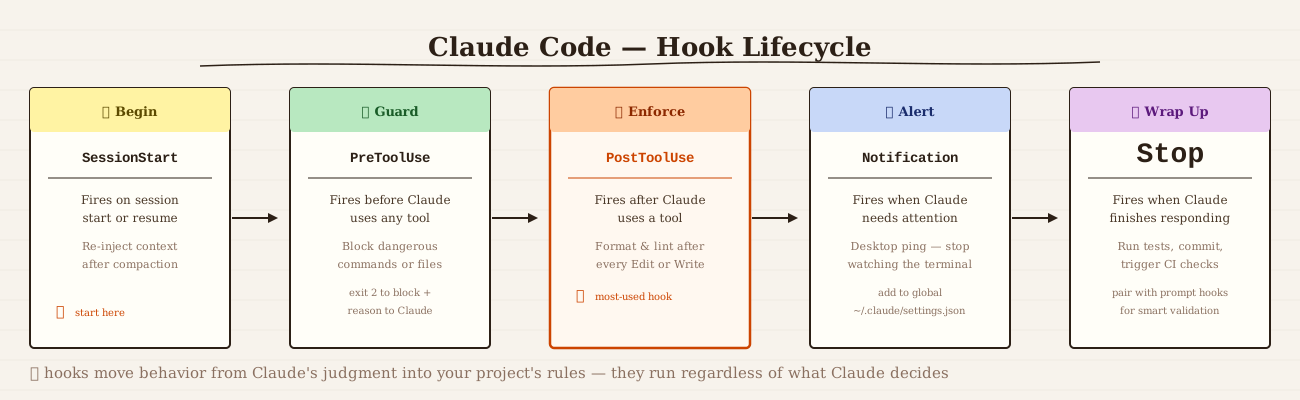
Claude Code supports 18 lifecycle events, from SessionStart to SessionEnd. You don't need to know all of them. Here are the five you'll actually use:
PostToolUse: fires after Claude uses a tool. Use it for auto-formatting, running linters, or logging what changed.
PreToolUse: fires before Claude uses a tool, and can block the action entirely. Use it for protecting sensitive files (.env, package-lock.json), blocking dangerous commands, or enforcing conventions before Claude writes anything.
Notification: fires when Claude needs your attention. Use it for desktop notifications so you can multitask instead of watching the terminal.
Stop: fires when Claude finishes responding. Use it for running tests after Claude says it's done, triggering CI checks, or auto-committing completed work.
SessionStart: fires when a session begins or resumes. Use it for re-injecting context after compaction or loading environment-specific reminders.
The other 13 events (SubagentStart, WorktreeCreate, InstructionsLoaded, etc.) are for more advanced workflows. Start with these five.
Three Hook Types Worth Knowing
Beyond the standard shell command hook ("type": "command"), Claude Code supports three more:
Prompt hooks ("type": "prompt") send your hook input to a Claude model (Haiku by default) for a yes/no judgment. Useful when you need reasoning rather than regex. For example, asking Claude to verify all tasks are complete before it stops:
{
  "hooks": {
    "Stop": [
      {
        "hooks": [
          {
            "type": "prompt",
            "prompt": "Check if all tasks are complete. If not, respond with {\"ok\": false, \"reason\": \"what remains to be done\"}."
          }
        ]
      }
    ]
  }
}
Agent hooks ("type": "agent") spawn a subagent that can read files, search code, and run tools before returning a decision. Up to 50 tool turns. Use these when you need to verify something against the actual codebase state, for example confirming tests pass before Claude stops.
HTTP hooks ("type": "http") POST event data to a URL instead of running a shell command. Added in February 2026, they're useful for team audit logs, shared notification services, or webhook integrations.
For most workflows, "type": "command" is all you need.
How to Configure Hooks
Hooks live in a settings.json file at one of three locations:
| Location | Scope |
|---|---|
~/.claude/settings.json | All your projects |
.claude/settings.json | This project only (commit to repo for team sharing) |
.claude/settings.local.json | This project, not committed |
The basic structure is always the same:
{
  "hooks": {
    "EventName": [
      {
        "matcher": "ToolName|OtherTool",
        "hooks": [
          {
            "type": "command",
            "command": "your shell command here"
          }
        ]
      }
    ]
  }
}
Matchers are regex patterns that filter when the hook fires. For PostToolUse and PreToolUse, they match on the tool name. "Edit|Write" fires after file edits. "Bash" fires after shell commands. "mcp__github__.*" fires after any GitHub MCP tool call.
The /hooks interactive menu is the easiest way to start. Type /hooks in Claude Code, pick an event, set a matcher, and enter your command. No JSON editing needed. Hooks added this way take effect immediately.
5 Hooks to Set Up Today
1. Desktop notification when Claude needs you
Stop watching the terminal. This fires every time Claude is waiting for input: permission prompts, idle state, anything that needs your attention.
{
  "hooks": {
    "Notification": [
      {
        "matcher": "",
        "hooks": [
          {
            "type": "command",
            "command": "osascript -e 'display notification \"Claude needs your attention\" with title \"Claude Code\"'"
          }
        ]
      }
    ]
  }
}
Add this to ~/.claude/settings.json. You want it globally, not just for one project.
2. Auto-format every file Claude edits
Prettier runs after every Edit or Write tool call. No more inconsistent formatting from Claude touching files one at a time:
{
  "hooks": {
    "PostToolUse": [
      {
        "matcher": "Edit|Write",
        "hooks": [
          {
            "type": "command",
            "command": "jq -r '.tool_input.file_path' | xargs npx prettier --write"
          }
        ]
      }
    ]
  }
}
Note: This requires
jqfor JSON parsing. Install it withbrew install jqon macOS.
Add to .claude/settings.json in your project and commit it. This is a team convention.
3. Block edits to protected files
Prevent Claude from modifying .env, package-lock.json, or .git/. Claude gets feedback explaining why the edit was blocked so it can adjust:
#!/bin/bash
# .claude/hooks/protect-files.sh

INPUT=$(cat)
FILE_PATH=$(echo "$INPUT" | jq -r '.tool_input.file_path // empty')

PROTECTED_PATTERNS=(".env" "package-lock.json" ".git/")

for pattern in "${PROTECTED_PATTERNS[@]}"; do
  if [[ "$FILE_PATH" == *"$pattern"* ]]; then
    echo "Blocked: $FILE_PATH matches protected pattern '$pattern'" >&2
    exit 2
  fi
done

exit 0
Make it executable (chmod +x .claude/hooks/protect-files.sh) and register it:
{
  "hooks": {
    "PreToolUse": [
      {
        "matcher": "Edit|Write",
        "hooks": [
          {
            "type": "command",
            "command": "\"$CLAUDE_PROJECT_DIR\"/.claude/hooks/protect-files.sh"
          }
        ]
      }
    ]
  }
}
4. Re-inject context after compaction
When Claude's context window fills up, compaction summarizes the conversation. Sometimes it drops details that matter. This hook fires after every compaction and reminds Claude of the critical stuff:
{
  "hooks": {
    "SessionStart": [
      {
        "matcher": "compact",
        "hooks": [
          {
            "type": "command",
            "command": "echo 'Reminder: use Bun, not npm. Run bun test before committing. Current sprint: auth refactor.'"
          }
        ]
      }
    ]
  }
}
Replace the echo with a dynamic command: git log --oneline -5 to show recent commits, or cat .claude/sprint-context.md to load a separate context file.
5. Enforce commit conventions on every git commit
Claude occasionally formats commit messages however it feels like: wrong type prefix, sentence case instead of imperative, trailing period. This hook catches those before they land:
{
  "hooks": {
    "PreToolUse": [
      {
        "matcher": "Bash",
        "hooks": [
          {
            "type": "prompt",
            "prompt": "Look at tool_input.command. If it does NOT start with 'git commit', return {\"ok\": true}. If it is a git commit command, extract the commit message and check only the FIRST LINE (subject line) — ignore any body lines after the first newline. Check: (1) format is 'type: Capitalized description' where type is one of feat/fix/refactor/docs/chore/perf/revert, (2) description starts with a capital letter, (3) no trailing period, (4) no 'Co-Authored-By' trailer anywhere in the command. Return {\"ok\": false, \"reason\": \"[specific issue. Corrected subject line: type: Description]\"} if any check fails. Return {\"ok\": true} if all pass."
          }
        ]
      }
    ]
  }
}
This is a prompt hook. Instead of a shell script, the hook input goes to a Claude model (Haiku by default) for evaluation. Claude reads the exact command, checks it against your conventions, and either approves or returns a corrected version inline. No regex, no parsing. Just describe your commit format in plain language.
Add to ~/.claude/settings.json so it applies across all projects.
A Note on Exit Codes
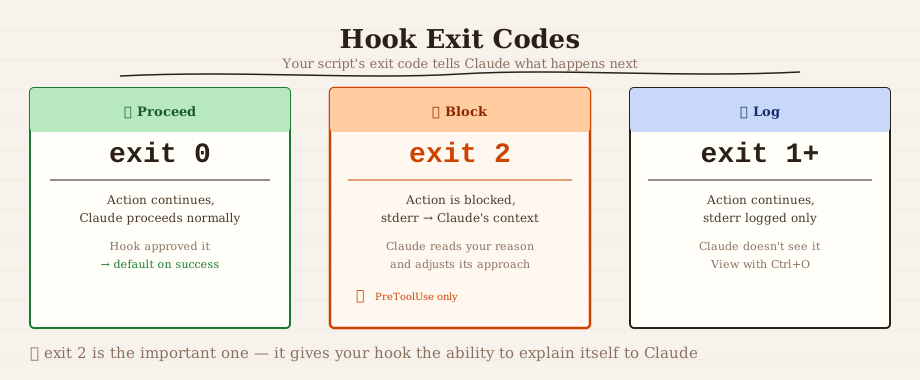
Your hook scripts talk to Claude Code through three channels:
- Stdout: added to Claude's context (for
SessionStart,UserPromptSubmithooks) - Stderr: shown to Claude when you exit with code 2
- Exit code: determines what happens next:
0→ proceed2→ block the action (stderr message goes to Claude as feedback)- anything else → proceed, stderr logged (visible with
Ctrl+O)
This exit code system is what makes PreToolUse hooks powerful: your script can read the exact tool call Claude is about to make, check it against your rules, and either let it through or return a clear explanation of why it's blocked.
Getting Started: 3 Steps
1. Add the notification hook globally first
Open ~/.claude/settings.json and paste the macOS notification example above. It's the most immediately useful hook and has zero risk, since it's additive only. Test it by asking Claude to do something that triggers a permission prompt.
2. Add the Prettier formatter to your current project
Open .claude/settings.json in your project root (create it if it doesn't exist), add the PostToolUse formatter hook, and install jq if you don't have it. Ask Claude to edit a file and verify it gets formatted.
3. Open /hooks and browse what else is possible
The interactive menu shows all 18 events with descriptions. Scroll through and think about what other behaviors in your workflow could be automated. The Stop event (run tests after Claude finishes) and PreToolUse (block specific patterns) are natural next additions.
Hooks Change the Relationship With Claude Code
Without hooks, you're always checking Claude's work after the fact. Did it format? Did it run the tests? Did it commit?
With hooks, those questions go away. Formatting happens. Tests run. You get notified. These things are no longer Claude's responsibility. They're your project's infrastructure.
Stop prompting Claude to do things. Build an environment where certain things just happen, every time.
This is Part 2 of the Claude Code Power User series.
← Part 1: CLAUDE.md — The File That Changes How Claude Codes Your Project
→ Part 3: Running Parallel Claude Code Agents on a Single Codebase